
Understand the issue.
Start with the symptoms, the affected tools and the interruption to your work.
A device or software problem can interrupt the work you need to do. Cydeavor provides practical technology help for U.S. businesses and individuals, with the equipment, access and support arrangements agreed before work begins.
Request a support assessmentDescribe the device or software, symptoms, when the problem started and your location. Darius will confirm whether and how the request can be handled; availability and response expectations must be agreed.
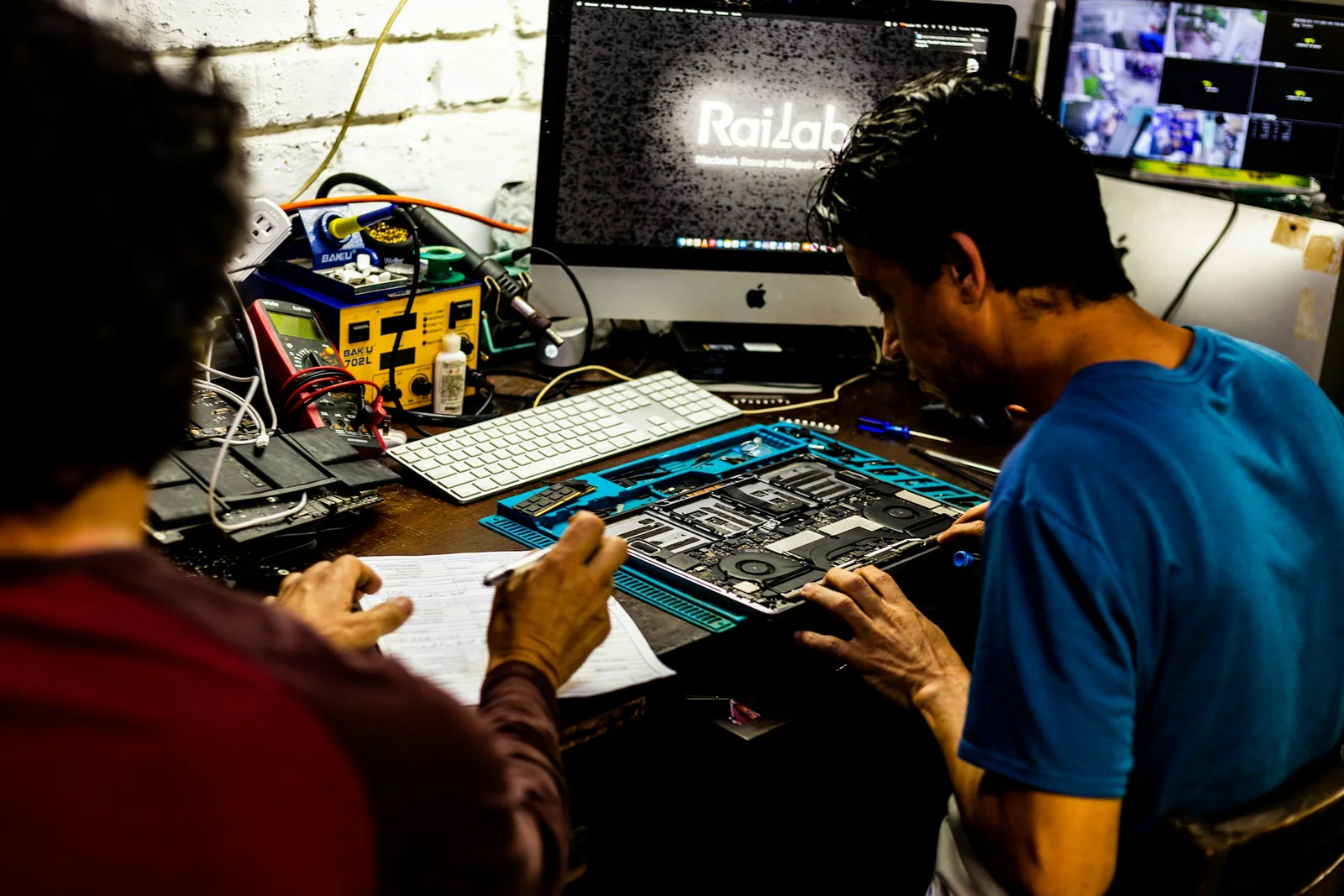
What the work helps you do
Start with the symptoms, the affected tools and the interruption to your work.
Know what can be investigated or fixed, and which equipment, access and timing are involved.
The result is checked and explained, including any further vendor or specialist work that may be needed.
Start with a description
Name the device or software, describe the symptoms and say when they started. Include recent changes, the impact on your work and your location. A description is enough to begin; do not send passwords or private files.
Cydeavor is based in Ninety Six, South Carolina, and considers requests from U.S. businesses and individuals. Remote or in-person arrangements depend on the issue, location and availability. The first discussion confirms whether and how the work can be handled.
Computer or device troubleshooting, software installation and configuration, and problems using an everyday tool or website. Name the device model, operating system and application so the first discussion can check the actual request.
A named product is not automatically supported. Hardware replacement, account recovery, vendor-only repairs and specialist work may need the original provider. An initial discussion does not authorize changes or purchases, and no automatic emergency response is included.
The agreed scope
Support starts with understanding the problem, the affected equipment or software and the impact on your work. We explain the available next steps clearly and confirm the work we can take on before proceeding.
Your proposal confirms deliverables, timing, revisions and any ongoing support before work starts.
Request a support assessmentReview the symptoms, recent changes and business impact of the problem.
Investigate the agreed device, software or website issue within the support scope.
Help work through the agreed configuration or setup task.
Explain the findings and practical options in language you can use.
Carry out approved changes that fit the supported systems and agreed access.
Review the result and explain any next steps or additional specialist work needed.
How we work
We collect the relevant details and confirm what systems and access are involved.
We assess the issue and define a practical support scope before making changes.
We carry out the agreed work, check the result and explain the findings. If the issue needs the original vendor, replacement equipment or a specialist, we discuss that next step rather than assuming every problem can be resolved here.
Interactive diagnostic example
A useful fix starts with understanding what happened. Try this small example of checking a symptom before taking a bigger action.
In this sample list, the active filter hides requests that have not started. The information is still present. Checking the view first avoids changing or deleting data unnecessarily.
This illustrates a diagnostic habit using a real working example on this page. It is not a client incident or a diagnosis of your device.
Fictional service desk
In progress
Requested
1 of 2 sample requests is visible. The list is filtered to work in progress.
A safe, local demonstration. These controls only change this sample list; they do not inspect or alter your device.
Questions, answered
Every request is custom scoped. Describe the issue and affected equipment or software; we confirm the support, timing and agreement before work starts.
Computer and device troubleshooting, software installation and configuration, and practical help with everyday tools. We assess the request first and explain when the original vendor or a specialist is a better fit.
The arrangement depends on the issue, your location and availability. We confirm how the work can be handled before you agree to proceed.
Only when listed in the accepted scope. Replacement equipment, parts, software licenses and other outside requirements are discussed before any purchase or extra work.
We explain what we found and discuss any change in scope or timing. Additional work needs your agreement before it begins.
No automatic emergency or around-the-clock response is promised. Availability, response expectations and any ongoing support arrangement must be agreed separately.
Tell Darius which device or software you use, what is going wrong and when it started. A description is enough to begin; do not send passwords or private files.
Explore further

Work through a specific task or workflow that your current tools do not handle well.
Explore service
Help customers understand your business and contact you, with hosting and a defined plan for keeping the site current.
Explore service
Help incoming callers get approved answers and leave useful details while your team handles other work.
Explore serviceStart with the issue
Tell Darius what is going wrong, the device or software involved and your location. Confirm availability and scope before work begins.